Showing posts with label iPad. Show all posts

Friday, July 6, 2012

Metro Style UI on the iPad

I am very intrigued by the new Metro design introduced by Microsoft, and I was excited to experience it on the iPad.
Track 8 is a gorgeous Metro music app with nice graphics, a clean layout, and smooth animations between menus.

Track 8 displays songs by artists, albums and playlist, and it shows best if your songs all have album artwork.

Less impressive, but still interesting, is FlickStack: a photo browsing app for Flickr and 500px photos.
The style adopted by FlickStack is a mixture between iPad and Metro style. Below an image of the home screen.

When in portrait orientation the left navigation is collapsed and the picture tabloid takes the full screen

The images of a selected stream are displayed in a even grid, which I found visually less interesting.


The same view in landscape orientation displays the navigation to all streams, compacted in a panel on the left, and the images of the screen on the right. I found this layout a little too busy and unnecessarily complex.

If you are not on a budget, you can experience, for  $25, a more complete Metro experience on your iPad by using Win8 Metro Testbed – powered by Splashtop. Win8 Metro Testbed is a simple remote desktop application, and it requires a connection to a PC installed with Windows 8 Consumer Preview.

Friday, June 29, 2012

Parallel Browsing Across Categories

Amazon Windowshop has an interesting solution for allowing browsing products within a specific category and across related categories. Categories are listed on the top of the main screen, and products are listed below each category. Vertical scrolling is more convenient than horizontal scrolling and this arrangement makes it easy to browse products from multiple categories at once. Amazon cleverly arranges related categories next to each other, for a more effective parallel browsing experience.

Tapping on any of the top level category drills down to subcategories. The example below display the subcategory for Electronics.

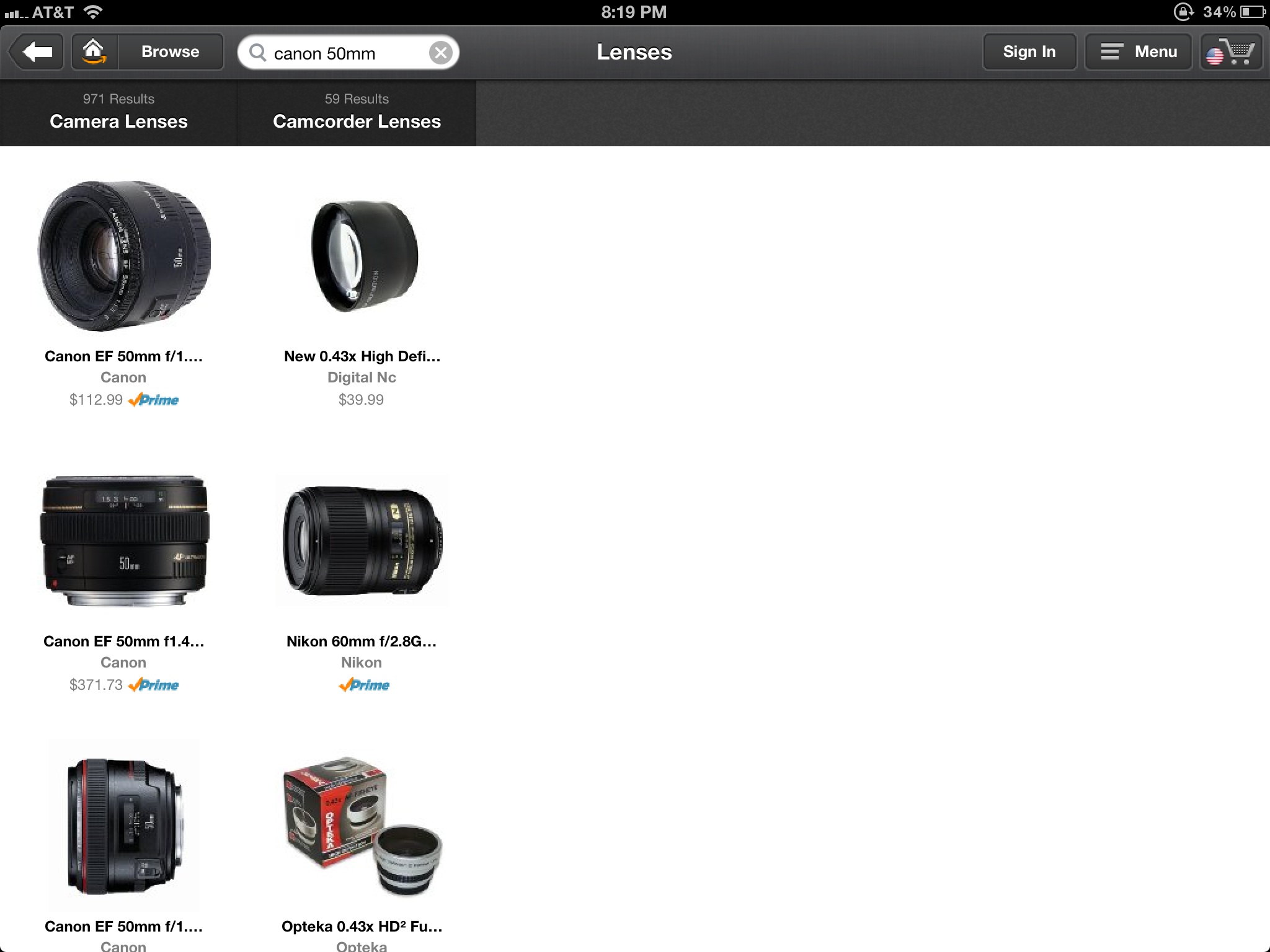
When searching for an item, all categories that contains search result will display and user may drill within the filter categories.

The example below show the results for the search term "canon 50mm", after drilling to the Lens subcategory.

Tapping on any of the product reveals its details. When in this view user can easily browse details for all products in that category, by tapping on the arrow navigation on the bottom.

Amazon navigation is very clever and fun to use, enabling parallel browsing within multiple categories. You can view this short movie where I capture the interaction with this app.

Tuesday, June 19, 2012

Dealing with Hidden Gestures

Our beloved mobile devices rely on a new type of input: multi-touch gesture. This is a relatively new domain, and while some gestures, as pinch to zoom, are becoming a standard interaction, there are many others used sporadically and inconsistently among apps.
Multi-touch gesture is a powerful new way to express input, but how can an app overcome the discoverability challenges?
In this article I am listing few solutions I have run into and few thoughts about their pro and cons.
Help window.
Some app, as ArtRage, display all available gestures in a separate window or pop-up invoked from a traditional help button.
The advantage is that I can get help when I need it.
The disadvantage is that I may never open the help to discover that multiple gestures are available.


Overview during startup
Some apps, as RDP or Spashtop Remote, display a help screen at the startup which illustrates all main gestures used in the app.
The advantage is that I have to view this information at least once.
The disadvantage is that this information shows when I less need it. The pop-up is kind of annoying, but I am afraid to permanently closing it, for when I need it in the future. I keep dealing with it, yet being mildly annoyed. More important, I am not sure how to get this information while using the app, which is when I actually need it.


Help when you need it
Another strategy, used by Google app, is to display a help tip the first time I am in a context where the tip applies.
The advantage is that this information shows when I most likely need it.
The disadvantage is that I may forget the gesture in the future, and have no way to bring back these instructions.


Overlay at startup and on demand
Finally some app, as Sanpseed, display help information both at the first launch of the app and on demand.
The advantage is that the information is both discoverable for the first time user and easy to retrieve when you need it. This solution provides a place to display both help on the gestures and on other areas of the user interface.
I can't see any obvious disadvantage, except that you may need to remember to get help.


- Posted using BlogPress from my iPad

Friday, May 18, 2012

Beautiful Visualizations on the iPad

ROAMBI is an iPad app that displays gorgeous visualizations with beautiful and fluid interactivity. Here some examples.
Pie chart.


Bar chart.


Squares.


ROAMBI has are many more visualizations but most of the magic actually comes from the interactivity. If you are passionate about visualizations and you have an iPad, I suggest you to play with this app. It is free and has some demo data you can use to explore the different visualizations. The two videos below show some of the features of this app.


- Posted using BlogPress from my iPad

Tuesday, May 15, 2012

Searching, Browsing and Serendipity Discover

In the last few years I participated to many discussions about browsing versus searching. I am personally more inclined to search than browse, but recently I am fascinated by a new emerging modality of information seeking: serendipity discovery. There are a number of applications that enable this type of discover. Some applications, as Pandora or StumbleUpon, allow users to discover information they may like using peer-sourcing and social-networking principles.
Other applications, as Aweditorium make the discover a fun engaging experience. While user is getting lost playing with the interface, they may stumble on something of actual interest.


Last week, while I was attending CHI 2012, I was intrigued by a presentation that was exposing this same principle: The Bohemian Bookshelf Supporting Serendipitous Discoveries through Visualization. Below a video which illustrates the idea.


- Posted using BlogPress from my iPad

Monday, May 14, 2012

Make it simple and beautiful

StambleUpon iPad app has updated its landing page, making it visually striking and extremely interesting. I am kind of impressed by the difference this makes for me, and how much more I enjoy using this app now.
I found the new layout to be simple, beautiful and inviting.

This is the analogous page in the browser. Again, the page is very simple, and tailored to my interests.


This is how the page used to look not long ago. The categories were displayed on a bar on the top. The page itself showed the recently rated pages with comments and stars. The side panel showed the people that had rated the page. All of these was irrelevant to the use of this app. This was in a sense a facebook-like page which did not make much sense for this type of app. I honestly have no interest on recent activities, neither on who is an active contributors. Let me wonder around and discover stuff I like, simply and unintrusively.

Which one do you prefer?
- Posted using BlogPress from my iPad

Wednesday, May 9, 2012

Contextual help without the usual drawbacks

Mobile apps are required to use the screen very wisely, and often there is not enough space to display both icons and labels for commands. This often calls for mechanism of help on demand. Unfortunately hover is not an interaction available on touch devices, which makes difficult to display standard tooltips.
Contextual help may be very powerful if it is well executed. It is much preferable to view help information clearly associated to what they describe, than a global description out of their context. Help should be easy to discover, readily available, yet it should take minimal space, since it becomes irrelevant once user reads it.
Unfortunately most of the applications which implement contextual help, either are difficult to discover, lack of a global view, clutter the UI or use too much real estate.
Only recently I ran into few examples of iPad apps which seems to overcome most of these limitations.
The most recent example of well executed contextual help is implemented in iPhotos.
Help is easy to discover from the icon consistently present on the screen.
When help is invoked it displays a set of callouts which describes the different interface elements in the current screen.


Tapping on the help icon again will hide all callouts.


What I like of this solution is that it provides a complete, yet contextual description of what I see on the screen.
Other apps use a glass pain over the interface, to overlay help information in relation of their context. While glass pain solutions are more visually pleasing, they make harder to view the context they are associated to, and they don't work well when the UI elements to describe are as dense as in the case of iPhotos.


Other apps try to compensate for this information density by showing one help clue at the time.


This solutions has the drawback of tooltip based help, where user can't get a global view of all clues. He/she is forced in a tunnel view, where only one clue at the time can be uncovered.
It is interesting as the lack of hover on touch devices has forces designer to come up with new, and in this case, better ideas. This is once again the proof that adding constraints may sparks innovation in the design process.
- Posted using BlogPress from my iPad

Monday, May 7, 2012

Delightful Visual Search History in Google iPad App

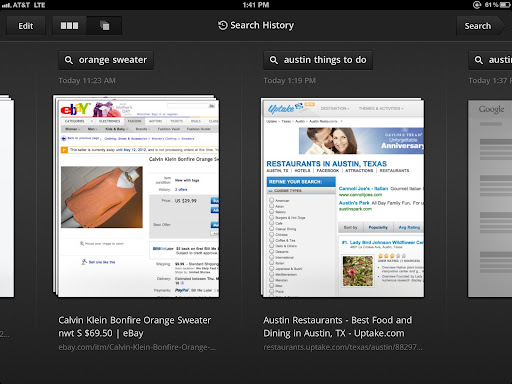
Another delightful feature of the updated iPad app is the introduction of the visual sliding history.
If you slide the main page from left to right, the app discloses a hidden panel that displays all recently performed searches.


This alone was good enough to make me smile, until when I discovered that the history was actually a stack of the pages associated with the search.


Tapping on the stack would unfold it and displays all the pages in a scrolling horizontal list. That was a wow moment for me.


Search Results Preview in Google iPad App

A new view option in the iPad Google app allows to view the result of a search as a preview of the actual pages. I had seen this and used in an older app, which was focused exclusively on this feature. I am glad to have now this beloved feature in my primary search app on my iPad.


This is the default view for the same search performed on the Google app.By pressing the preview button on the top right, the page displays the previous screen.


Saturday, May 5, 2012

Elegant layout and amazing browsing experience with Flipboard

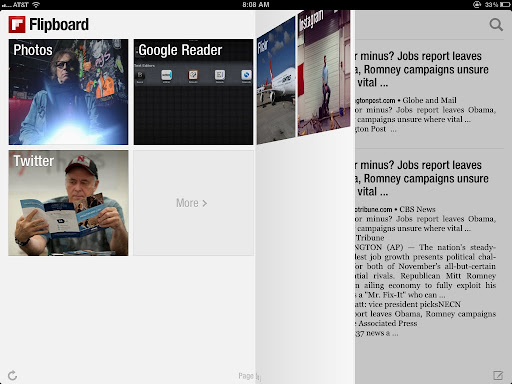
Flipboard has one of the most elegant layout and browsing experience of any other app I tried.


I was amazed how information looks more interesting when laid out in a tabloid format rather that in a table. 


Most of the magic is in the interaction. The transition between pages simulates flipping the pages of a book.


I suggest watching this video to get a sense for yourself.

Thursday, May 3, 2012

Layered navigation: an emerging design pattern

Layered panels to represent navigation to previous levels. This is one of the design pattern that seem to be emerging on the iPad platform. On the bottom layer user can pick different list to  view (e.g. timeline, mentions etc.)


It is interesting how the bottom layer minimizes to display the icons only when the third layer is opened.


Middle layer displayed a list of entry, while the top layer display the content of one of the entry. You can move the the detail top layer a little bit to the right to get a better view of the list view

Tuesday, May 1, 2012

Pop-out Panels

In WeatherBug the side tiles pop out of the panel in separate windows when you tap on them.


When you tap outside the window, this gets back in place. this is a clever design to provide a glimpse of information in place, without taking too much space, but provide a simple way to expand in a larger area on demand.


Friday, April 13, 2012

Undo as an Inverse-Clock

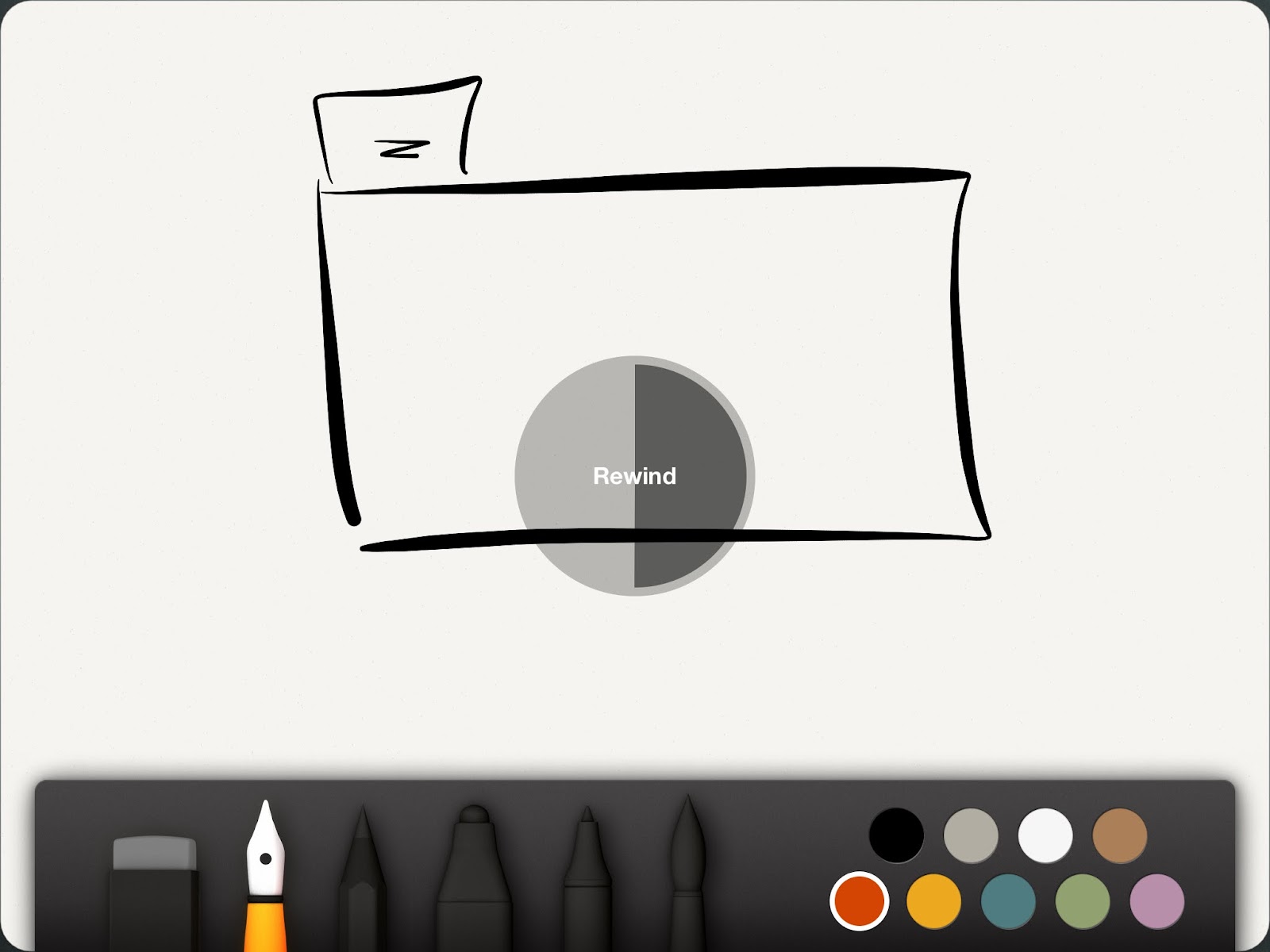
Paper, which is a free sketching app on the iPad, has a lovely implementation of the undo. It was kind of tricky to bring up the undo, but when I figured how, it was just beautiful. When the widget comes up you can go back in time by moving the finger with a rotatory motion. It animates the progressive undo of every stroke. It is like an inverse clock. Brilliant!


Twitter Facebook Google Plus Stumbleupon RSS Feed

 
Design by Free WordPress Themes | Bloggerized by Lasantha - Premium Blogger Themes | Best Web Hosting Coupons